

Install ThemeWare® in 5 steps
From the extension in the Shopware Store to the finished storefront — no FTP, no terminal, everything with a click.
Step-by-step guide
The entire installation takes place directly in your Shopware administration. Make sure beforehand that you have a running Shopware 6 shop with access to the administration, your Shopware account is logged in and you have already purchased ThemeWare® or started the trial period.
Purchase theme in the Shopware Store
Open the administration of your shop and navigate to Extensions → Store → Themes. Search for "ThemeWare" and select the desired variant. Click on "Add theme" and confirm the free trial period.
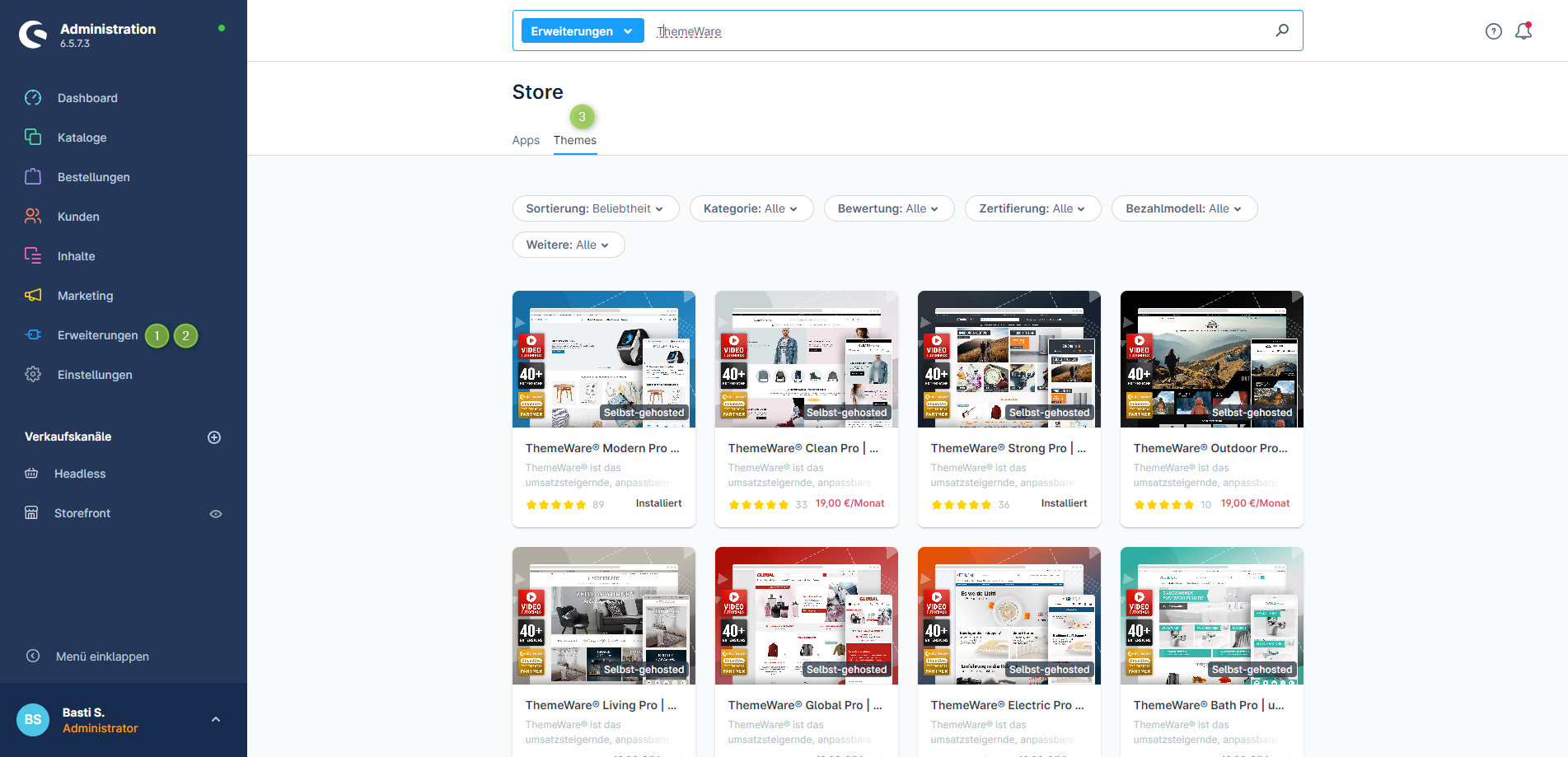
Tip: You can also perform this step via the Shopware Store in your browser.
Install ThemeWare®
Navigate to Extensions → My Extensions → Themes. ThemeWare® is displayed in the overview. Click the "Install" button to install the theme.
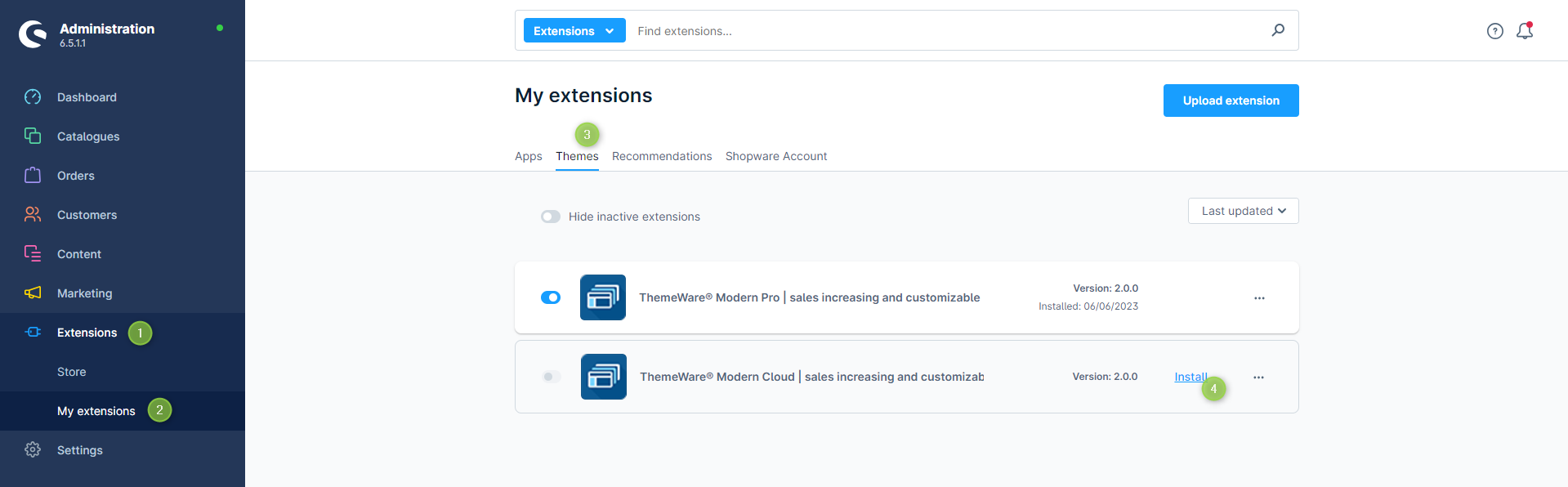
Activate ThemeWare®
After installation, the theme must be activated. Click the switch button (to the left of the ThemeWare® logo) in the extension manager to activate the extension.
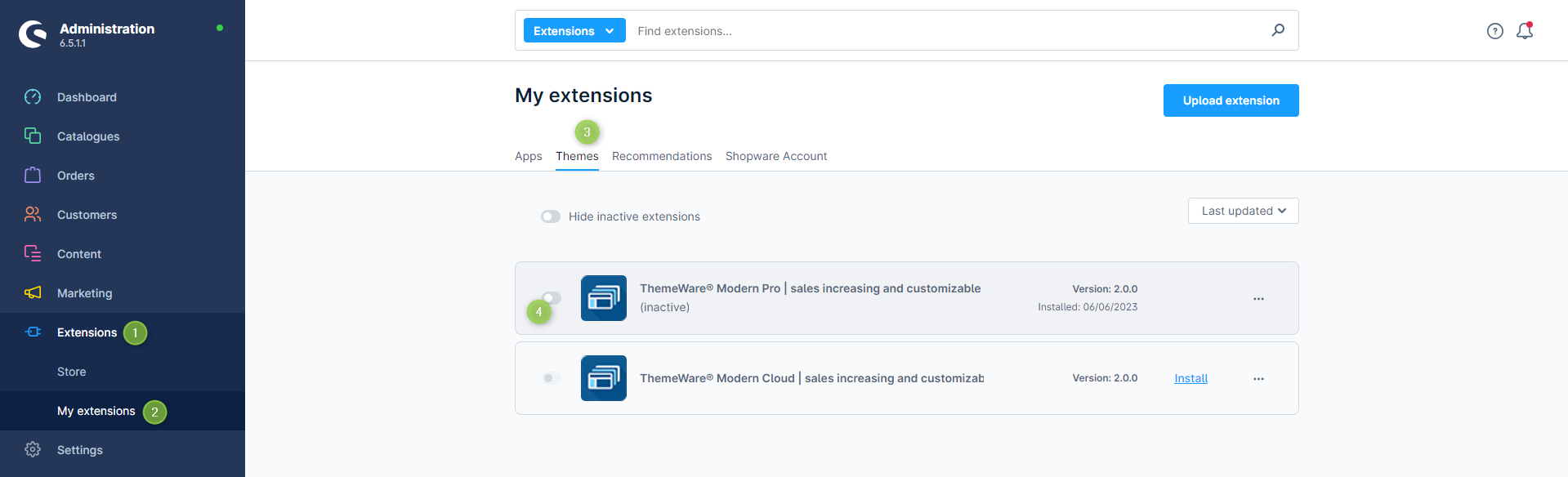
Assign theme to sales channel
Select your storefront sales channel in the sidebar and switch to the "Theme" tab. Click on "Change theme", select ThemeWare® in the popup and confirm with "Save".
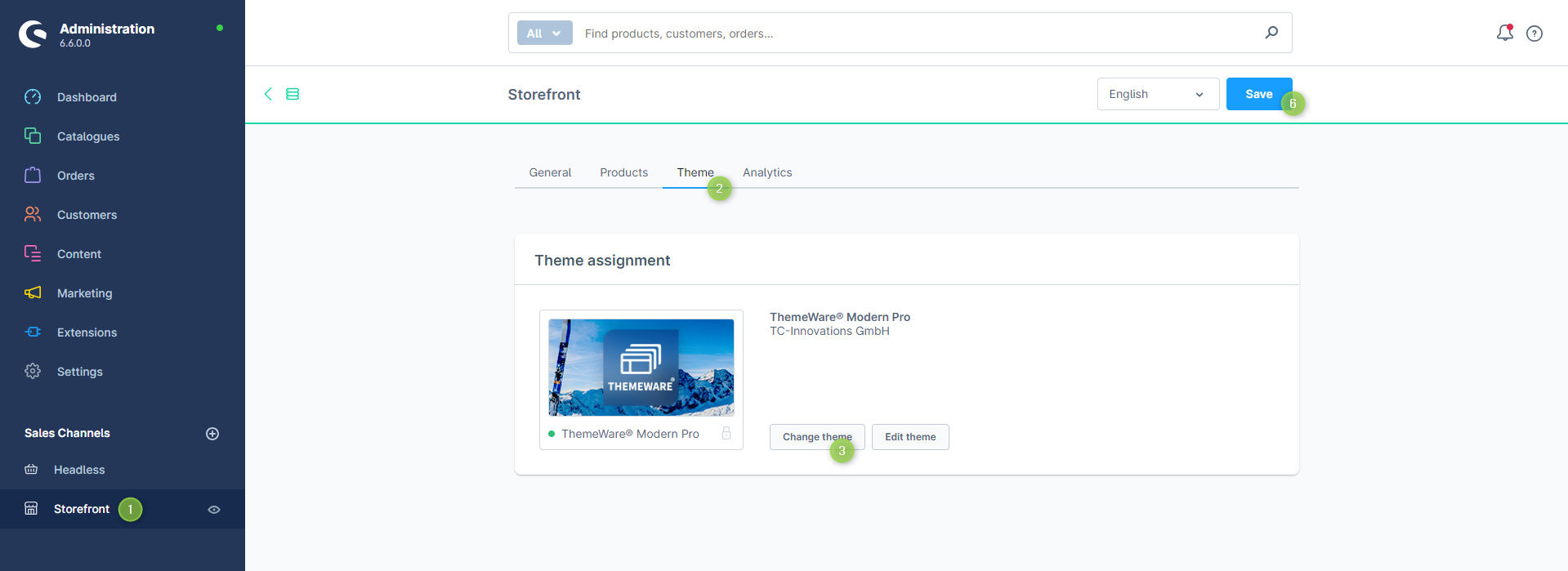
Note: Shopware automatically creates a storefront sales channel with the chosen shop name during standard installation.
Configure theme
Your theme is now active. Open the theme configuration via Sales Channel → Theme → "Edit theme" to customize 1,350+ settings for layout, colors, typography, header, footer and more.
Done! ThemeWare® is installed and ready to use. Use the knowledge base and the documentation for detailed configuration.
Prefer video?
Watch our video tutorial — from the extension to the finished storefront.
Watch video tutorial →Helpful resources
Frequently asked questions about installation
Do I need technical knowledge?
No. The entire installation takes place via the graphical interface of the Shopware administration. No FTP, no terminal, no code. Your theme is ready to use in 5 minutes.
Does the installation also work with Shopware Cloud?
Yes. For Shopware Cloud there is the ThemeWare® Cloud edition. The installation process is identical — via the Shopware Store in your administration.
What happens to my current theme?
Your previous theme remains installed. You can switch between themes at any time by assigning a different theme to a sales channel. Your content (products, categories, CMS pages) is preserved.
Can I install ThemeWare® on a test environment?
Yes. You can install ThemeWare® on a test domain and later transfer the license to the live domain via your Shopware account.
My theme is not displayed after installation — what to do?
Make sure you have completed all 5 steps: Purchase → Install → Activate → Assign → Save. Step 4 (Assign) is frequently forgotten. If problems persist, use our troubleshooting assistant.
Is there a 1-click demo installation?
Yes. ThemeWare® Pro offers a 1-click demo installation that automatically sets up a professional shopping experience with graphics, storytelling and all CMS elements. This gives you an immediately ready-to-use storefront.
How can I customize my Shopware theme after installation?
After installation, you can customize your Shopware theme via the theme configuration in the administration. With ThemeWare® you have over 1,350 settings available: colors, layouts, fonts, header, footer and much more — completely without code. The Config Finder helps you find every setting instantly. Detailed guides can be found in our knowledge base.
Install Shopware 6 theme — guide for beginners
Installing a Shopware 6 theme is easier than you think. Unlike many other e-commerce systems, theme installation in Shopware is done entirely via the graphical interface — without FTP access, without terminal and without programming skills. The entire process takes about 5 minutes.
The process is identical for all Shopware themes: Purchase the theme in the Shopware Store, install and activate it in the extension manager, assign it to the sales channel and save. With ThemeWare® there is an additional advantage: The 1-click demo installation automatically sets up a professional shopping experience — with graphics, CMS elements and sales-boosting layouts. Experience the result live in the ThemeWare® demo shop.
With over 17,000 installations, ThemeWare® is the most popular Shopware 6 theme. It can be tested free for 30 days and is optimized for all current Shopware versions. Compare the ThemeWare® editions and pricing and find the right version for your shop. Detailed guides can be found in our knowledge base, an overview of all features in the Shopware theme comparison.
Still have questions? Get in touch
Visit our popular Service Portal at service.themeware.design to get the ideal support and all answers to your questions. We are known for our excellent service. Try us!